
Rivetra Contractor / Start on the web
Scope, estimate, invoice.
One job record.
Keep the estimate, job documents, photos and invoice connected. Start with one sample job and build an estimate using your own descriptions and prices.
Start at your own pace. Already have an account? Sign in.
Prefer Android? Get the open-test app.
Your first estimate
A small first job. A clear next step.
Use fictional client details for your first pass. Keep your current business records where they are while you decide whether Rivetra fits.
- 01
Create your company
Create a web account with your name, email and company details. Review the displayed terms and finish signup.
- 02
Add a sample client
Open Clients. In Add Client, enter a sample name and leave optional contact details blank, then choose Create Client.
- 03
Create one job
Open Jobs and expand Create Job. Enter a job name, such as Sample trim replacement, and select your sample client.
- 04
Build the draft
Choose Create Draft Estimate to open the job. Then choose Add Item and enter your own description, quantity and list price.
- 05
See the customer view
Choose Preview Estimate. Review the scope and amounts. You can stop at this preview; sending a document or converting to an invoice is a later decision.
Core drafting does not require a connected payment provider. Current account-access and subscription terms apply.
See the estimate builder
See what goes into one estimate.
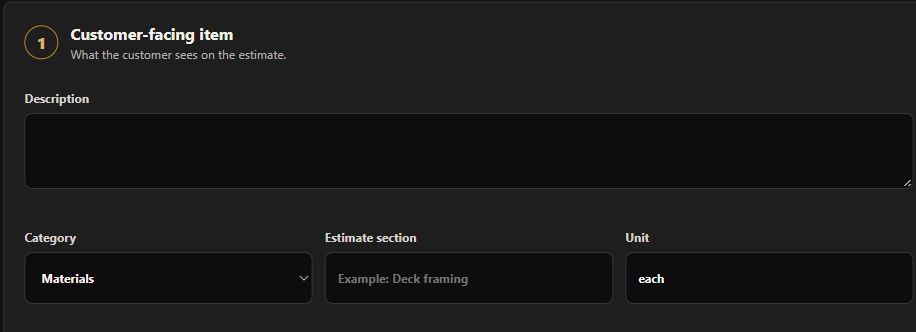
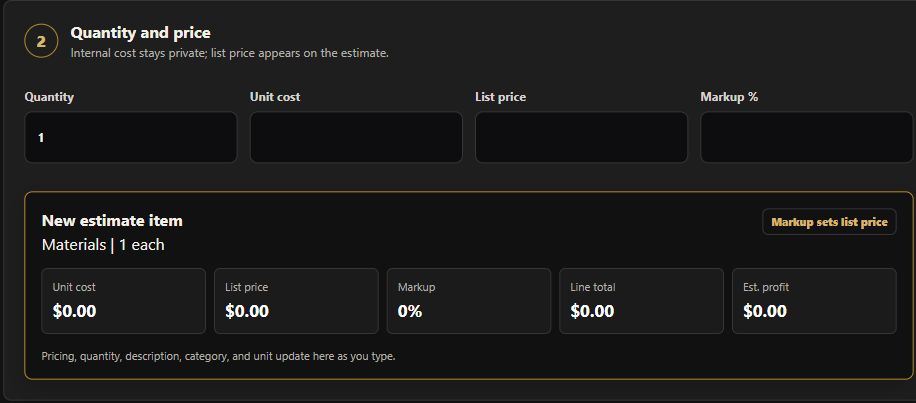
Describe the work, set quantities and review your own pricing. These blank controls show the estimate editor; the walkthrough stops at reviewing the result.
Watch the feature tour.
Follow the description, quantity, pricing and review controls. Synthetic narration, captions and a text transcript guide the way.
Read the video transcript
One estimate. Every detail in its place.
Build your next estimate in Rivetra, with the details right where you need them.
Start with one job.
Start with a client and a job, then open Add Item.
Give the work a clear description.
Describe the work, choose a category, and set the unit.
Your quantity. Your pricing.
Add your quantity and pricing. The unit cost stays internal, while the list price appears on the customer estimate.
Check the item as you build.
As you enter the numbers, use the live item summary to check the quantity, price, and line total.
Review the customer view.
When you're ready, choose Preview Estimate and review the customer document before deciding to send it.
Build your first estimate.
Get started at Rivetra dot app slash start, where you can follow the guide and build your first estimate at your own pace.
A sample walkthrough using blank Rivetra controls and illustrated steps.
Review the scope and amounts in Preview Estimate, then choose when to send. Check the recipient before sending a real document.
One example
The estimate belongs to a job, not a loose file.
For a trim replacement, keep the room, damaged sections, quantities and finish decisions with the estimate. Job documents and selected photos give those line items context. When the work is ready to bill, prepare the invoice from the same job.
You supply the facts and prices. Rivetra keeps the records connected so you can review the scope behind the amount.
See a worked trim-replacement estimate with fictional quantities, sample math and a scope change.
Use the printable estimate checklist to review inclusions, exclusions and the invoice handoff. No account is needed for the checklist.
Before you begin
Start with the core workflow.
Do I need to arrange a demo?
No. Create your account and follow the first-estimate steps above. You can explore the web workspace at your own pace.
Do I need to import all my records?
No. Start with a fictional client and one sample job. Use that draft to judge the workflow before deciding what to move.
What does access cost?
Review the current account-access offer and subscription terms shown in the app before choosing a subscription. See the subscription policy.
What comes after the estimate?
The job holds its supporting documents and photos. When ready, review the approved work and prepare an invoice from that job. Check the amounts and recipient before sending a real document.
Also on Android
Use the open-test app.
The Android testing release and public store release can differ. To receive the testing release, open the enrollment page with the Google account used on your device, join if prompted, then follow its install or update link. Updates can take time to appear.
Already a tester? Install or update on Google Play.
Put one job together